
This article explains how to create an FTP account in cPanel and use it to upload a complete website with an FTP client like FileZilla.
When to use FTP? It is recommended for uploading many files, large sites, or complete folders. For occasional changes, you can use the cPanel File Manager.
Step 1 — Create an FTP account in cPanel
- Go to cPanel → Files → FTP Accounts.
- Fill out the form for the new account.


| Field | What to enter |
|---|---|
| Log in | FTP username (e.g., mysite). |
| Password | Secure password (alphanumeric, symbols, uppercase). |
| Directory | For the main site, use public_html. For a subfolder, enter its name. |
| Quota | Disk limit for that account (optional). |
- Click Create FTP Account.
Main site: Files must be placed in public_html (e.g., index.html or index.php in the root). If you upload to another folder, the domain will not display them.
Step 2 — FTP connection details
From FTP Accounts → Configure FTP Client you obtain the details, or use this reference:
| Field | Value |
|---|---|
| Host / Server | yourdomain.com or server IP |
| Username | mysite@yourdomain.com (additional account) or main cPanel user |
| Password | The one defined when creating the account |
| Port | 21 (FTP) |
Step 3 — Configure FileZilla and connect
- Download FileZilla Client from filezilla-project.org (not the Server).
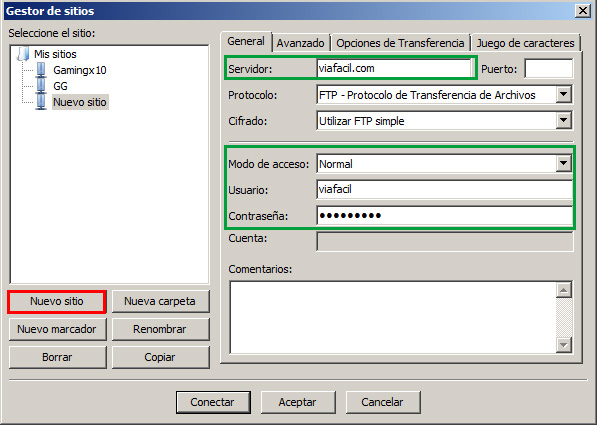
- File → Site Manager → New Site.
- Fill in host, port 21, Normal mode, username, and password.
- Connect and wait to see the server folders in the right (remote) panel.
Step 4 — Upload the website
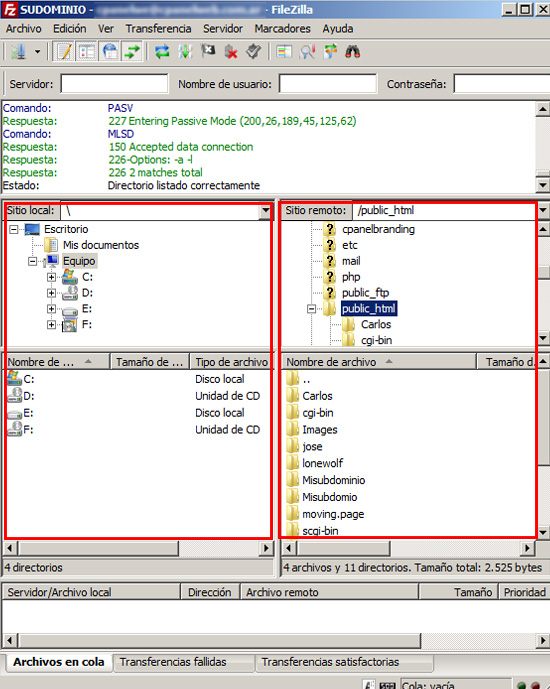
- Left (local) panel: locate your site's files on your PC.
- Right (remote) panel: enter
public_html. - Select the files → right-click → Upload.
- Wait for the transfer queue to finish without errors.
- Test
https://yourdomain.comin the browser.
Manage existing FTP accounts
In FTP Accounts you can:
- Change password or quota.
- Delete the account (it does not delete already uploaded files).
- Configure FTP Client to view ready-to-copy details.

Common issues
- Login error: verify the
user@domainformat on additional accounts. - Uploaded everything but the site doesn't load: confirm that the files are in
public_html, not in the account root. - Interrupted transfer: very large files are best uploaded as a .zip and extracted in cPanel.
- Write error: it may be a full disk; see Disk Full: how to fix it.
If you cannot create the FTP account, connect, or complete the website upload, open a ticket from the client portal or consult via the site's online chat.