

This article complements the SSH access guide and explains how to configure PuTTY to connect to a Linux dedicated server with correct encoding and a secure channel.
SSH vs Telnet: Unlike Telnet, SSH encrypts the connection and can use compression. It is the recommended method to manage the server via command line.
Warning: Changes made via shell can render the server inoperative. Prefer the control panel (WHM/cPanel) when an equivalent option exists. Incorrect changes via SSH may require separate billed support.
Before you begin
- Keep the server's IP and the service manual credentials handy.
- If this is your first connection, follow the SSH Access guide from this same category first.
- Download PuTTY from putty.org.
Recommended PuTTY Configuration
Open PuTTY and apply these settings before saving the session:
1. Session (basic data)
- In Host Name, enter the server's IP.
- In Port, leave
22(unless using another SSH port). - In Connection type, choose SSH.
- In Saved Sessions, enter an identifying name (e.g., "Production dedicated").
2. Terminal → Features
- Enable Disable application keypad mode (avoids issues with special keys in some apps).
3. Window → Translation
- Under Remote character set / data reception, select UTF-8.
- Under Adjust how PuTTY…, check Font has XWindows encoding if available (better visualization of special characters and accents).
4. Connection → SSH
- Enable Enable compression (optional; can improve speed on slow links).
- Under Preferred SSH protocol version, choose 2 only (SSH v2 is the secure standard).
5. Save and connect
- Return to Session in the category tree.
- Click Save.
- Double-click on the saved session in Saved Sessions.
- Accept the host key on the first login (Yes).
- Enter your username and password when prompted.
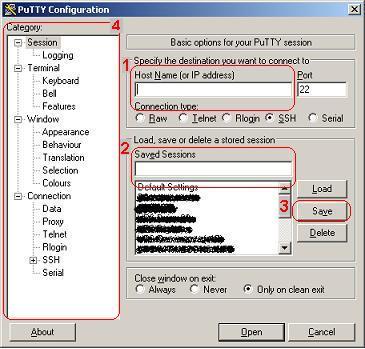
Summary of Options
| Location in PuTTY | Option | What it does |
|---|---|---|
| Terminal → Features | Disable application keypad mode | Numeric keypad and special keys |
| Window → Translation | UTF-8 | Accents and special characters |
| Connection → SSH | Enable compression | Compressed channel (optional) |
| Connection → SSH | SSH protocol version 2 only | Secure protocol only |
Mac / Linux: The native terminal already uses UTF-8. Connect with ssh user@IP without needing these PuTTY settings.
If the session does not connect or characters look incorrect after configuring PuTTY, open a ticket from the client portal or consult via the site's online chat.