
This article explains what to do if you run out of space on your contracted Web Hosting service.
What can you do?
The issue of lack of space can be resolved in two main ways:
- Free up space: delete unused content or old emails stored on the service.
- Upgrade the plan: update to a service with more available space.
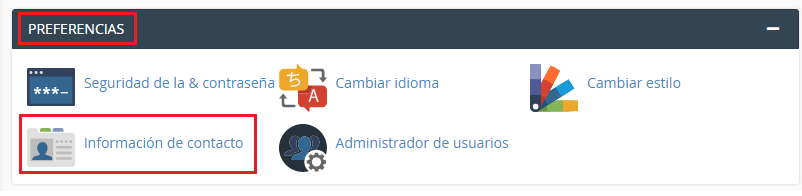
Receive notifications at 80% usage
For the system to notify you when the service reaches approximately 80% of the space:
- Log in to the hosting control panel (cPanel or equivalent).
- Go to Preferences → Update Contact Information (or similar contact section).
- Configure a valid email address where you want to receive the alerts.
Solutions to free up space
1. Delete emails stored on the server
If you use only Webmail, messages are usually kept saved on the server and take up space permanently. As you receive mail, consumption grows.
To free up space:
- Delete old messages from Webmail.
- Or configure an email client (Outlook, Thunderbird, etc.) to download messages to your PC and delete them from the server (especially if you use POP3 or IMAP with manual cleanup).
Check the knowledge base for email client configuration guides if you need them.
2. Disable the catch-all address
The catch-all address receives all messages sent to addresses that do not exist on your domain.
Example: if someone writes to b_cachavacha@tudominio.com and that mailbox does not exist, the email goes to the catch-all address.
It is useful not to lose misaddressed mails, but it also accumulates spam (random sends to your domain). Therefore, it is recommended to disable it if you don't need it.
The option is usually in the panel, in the email or catch-all / default address section.
3. Review site files
- Delete backups, logs, or temporary files you don't use (
error_log, `.zip` copies, etc.). - Review very large upload folders (images, videos).
- Uninstall plugins or themes you don't use.
Acquire more space
If you need more capacity permanently, you can upgrade your plan or purchase add-ons from the client portal (upgrade or service add-ons section).
Do you need help?
If you cannot identify what is taking up space or the service remains full after freeing up, contact technical support from the client portal or the site's online chat.