
This article describes solutions to frequent problems in FTP connections. The examples use the FileZilla client.
Frequent problems
| # | Error / symptom |
|---|---|
| 1 | Failed to retrieve directory listing. |
| 2 | Cannot log in with username and password. |
| 3 | Too many connections (8) from this IP |
Problem 1 — Error listing directories
Possible causes
- Antivirus or firewall on your PC blocks port 21 or FTP data ports.
- Internet connection via proxy or shared network with restrictions.
- FTP transfer mode (active/passive) incompatible with your network.
Solutions
- Temporarily disable antivirus or firewall and try again (or add FileZilla to exceptions).
- If you are on a corporate network, ask the administrator if FTP is allowed (port 21 and data ports).
- Configure FileZilla in active mode with port range:
Step by step in FileZilla:
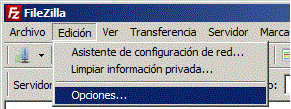
- Open FileZilla → Edit → Settings... (or Options...).
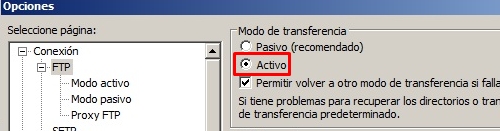
- Go to FTP → Transfer mode → select Active.
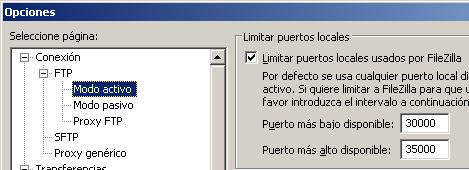
- In Active mode, enable Limit local ports and define the range 30000–35000.
- Save changes and try to connect again.
Tip: In many networks, passive mode works better. If active mode does not help, try switching back to passive in the same section of FileZilla.
Problem 2 — Incorrect username or password
Common cause
When copying the password with a double click, an extra space at the end is sometimes included.
Solution
- Select the password from start to finish (dragging with the mouse).
- Right click → Copy and paste it into FileZilla.
- Verify that the FTP username is correct (sometimes it is the cPanel user or the full format indicated in the Service Manual).
Problem 3 — Too many connections from this IP
Cause
FileZilla opens more simultaneous connections than allowed by the server (usual limit: 8 per IP).
Solution
- FileZilla → Edit → Settings... → Transfers.
- Under Maximum number of simultaneous transfers, set 4.
- Press OK and try again.
- Close other FileZilla windows or tabs connected to the same server.
Do you need help?
If the problem persists, contact technical support from the client portal or the site's online chat. Indicate the exact error message and whether you tried active/passive mode.