
This document contains information about the applications you can install with Softaculous Apps Installer from cPanel and how to choose the right one for your site.
Softaculous Apps Installer is the automatic application installer included in cPanel. It allows you to install WordPress, online stores, forums, educational platforms, and many other applications in a few clicks, without downloading or uploading files or creating the database by hand.
What is it used for?
- Install open-source applications on your domain, on a subdomain, or in a folder.
- Automatically create the database and the administrator user for the application.
- Update installed applications, make backups, and uninstall them from the same place.
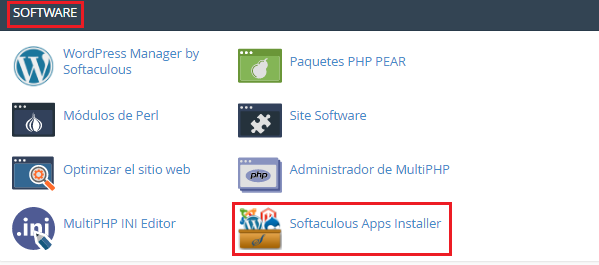
Access: log in to cPanel from the client portal → Log in to cPanel, or at https://yourdomain.com/cpanel. Then open Software → Softaculous Apps Installer.
Application categories
In the Softaculous sidebar menu, applications are sorted by category. These are some of the most used:
- Blogs and content management systems (CMS): WordPress, Joomla, Drupal, Concrete CMS, Dotclear, b2evolution.
- E-commerce: PrestaShop, OpenCart, AbanteCart, Zen Cart, Magento.
- Forums: phpBB, MyBB, SMF.
- Education: Moodle, Chamilo.
- Calendars and organization: WebCalendar.
- Developer tools: Laravel, Composer.
The complete catalog and available versions depend on the server's Softaculous license and are updated frequently. To see all options, browse the categories or use the Softaculous search engine.
How to choose and install an application
- Search for the application by name or by category and open it.
- Review the description, version, and requirements. Some applications, like large stores, need more space and memory.
- Click on Install and fill in the details: the domain, the folder (leave it empty to install in the domain root), and the administrator username and password.
- Confirm the installation. Upon completion, Softaculous shows you the site address and the administration panel address.
Important: each installed application takes up disk space and usually uses a service database. Before installing, check the available space in cPanel's Disk Usage. If it is not enough, or the application needs more resources, you can upgrade your service: consult the sales department from the client portal or the site's online chat.
Frequent issues
- I cannot find an application: it may not be included in the server license or it may have been discontinued. Look for an alternative in the same category.
- The installation warns that the folder is not empty: there are already files in that destination. Choose another folder or a subdomain, or make a backup and empty it before installing.
- The installation fails due to lack of space: free up disk space or upgrade the service.
- I want to delete an application: uninstall it from the Softaculous installation list. This deletes the files and the database together.
- My application became outdated: update it from the Softaculous installation list. Make a backup first.
If you have doubts about choosing or installing an application, open a ticket from the client portal or consult through the site's online chat.