
This article explains how to create an email box in cPanel, how to change its storage space and how to delete it. The address is formed by the name you choose and the domain, for example info@yourdomain.com.
What is it for?
Each box receives and stores mail for its own address. From cPanel you can:
- Create the box and set its password.
- Assign it a quota, or leave the default value.
- Delete a box that you no longer use.
Access: log in to cPanel from the client portal → Log in to cPanel, or at https://yourdomain.com/cpanel. Then go to Email → Email Accounts.
Important: to receive mail, the domain must be delegated to the hosting DNS. The box quota comes from the plan disk: it cannot be greater than the free space. If the hosting disk is full, no box receives mail, even if you increase the quota. It is best to generate the password and it must not contain accents or ñ.
Create the box
- Log in to cPanel.
- Open Email → Email Accounts.
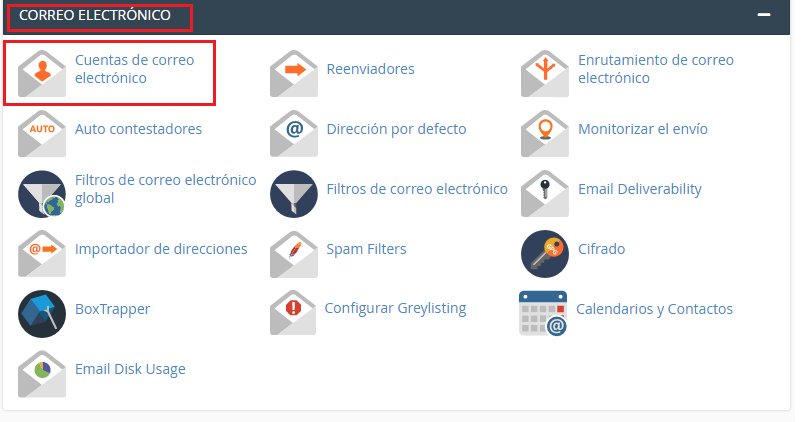
- Click on Create.
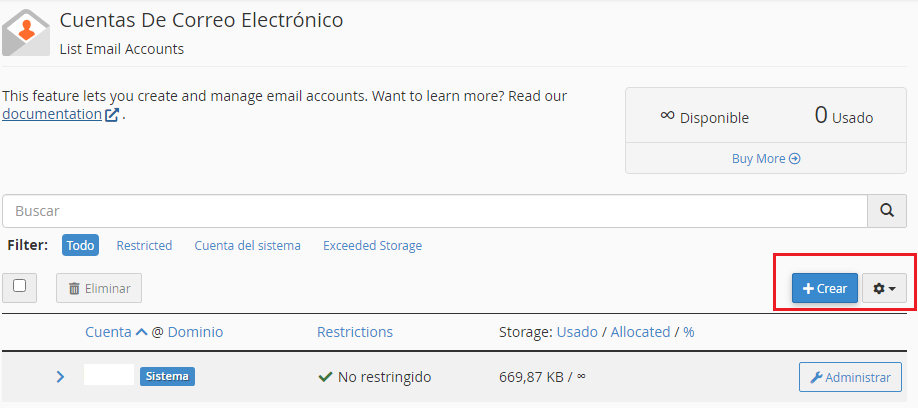
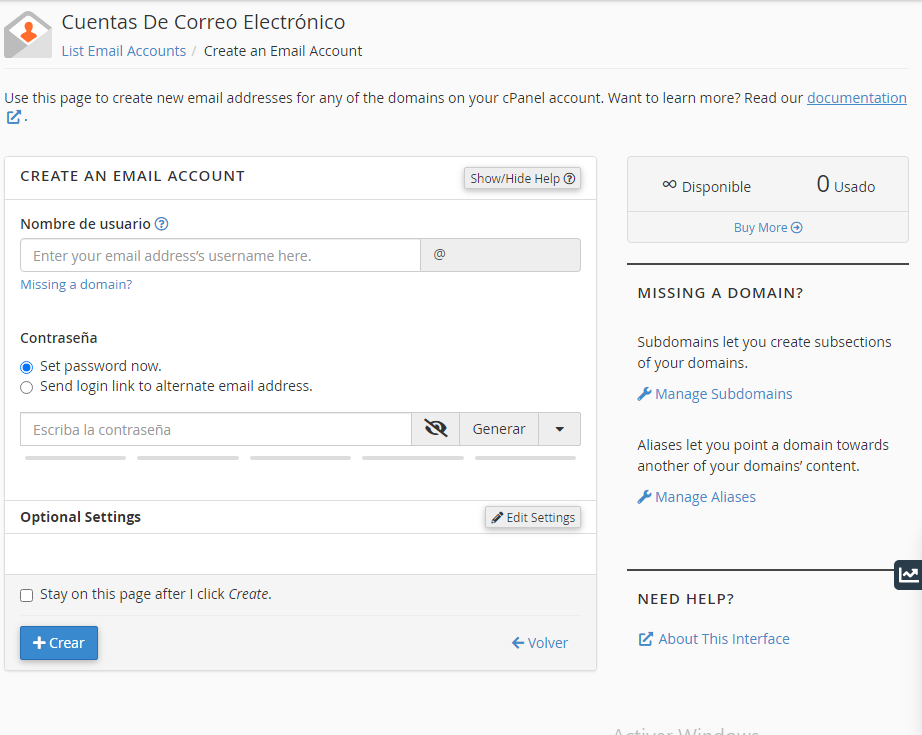
- Fill out the form:
- Username: the part before the
@. If there is more than one domain, choose which one to create the box in. - Password: type it or use Generate.
- Password (again): repeat it if the form asks for it.
- Edit Setting: open it only if you want to change the space now. If you do not touch it, the default value remains.
- Username: the part before the
- Click on Create.
The box stays in the list. You can now access via Webmail or configure an email program with that address and that password.
Change the space
- In Email Accounts, click on Manage on the box you want to adjust.
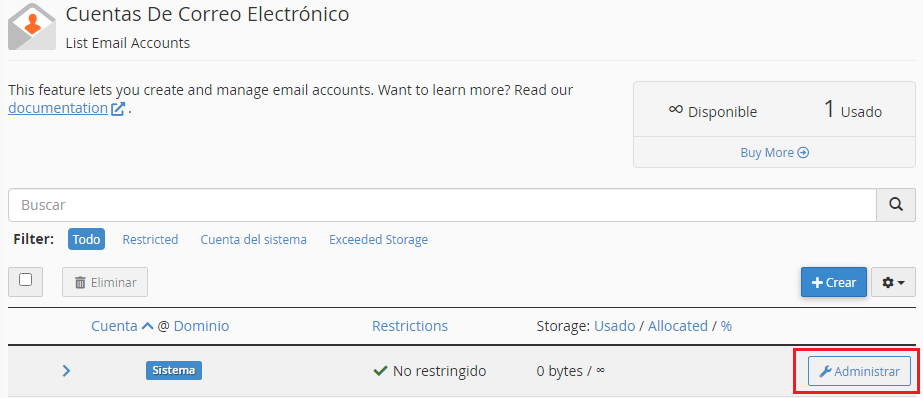
- Open Storage.
- Indicate the new space. It must fit within the free disk of the plan.
- Click on Update Email Settings.
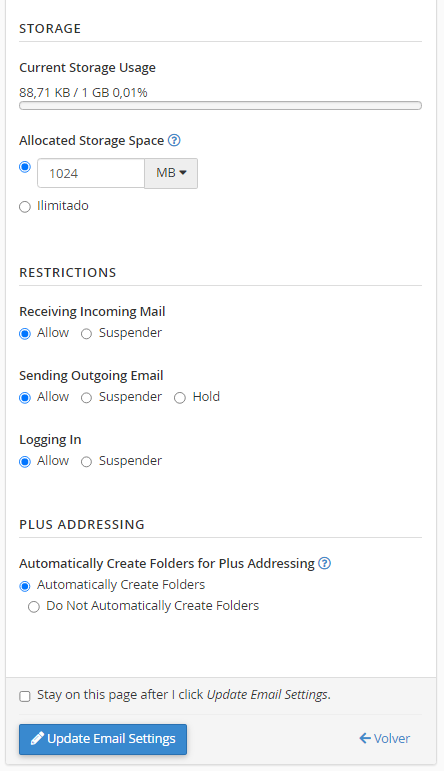
If the box is already full, new mail does not come in until you delete messages or increase the quota, and provided the hosting still has free disk space.
Delete the box
- Go back into Email → Email Accounts.
- On the box you want to delete, click on Manage.
- At the bottom of the screen, click on Delete Email Account.
- Confirm the deletion when cPanel asks for it.
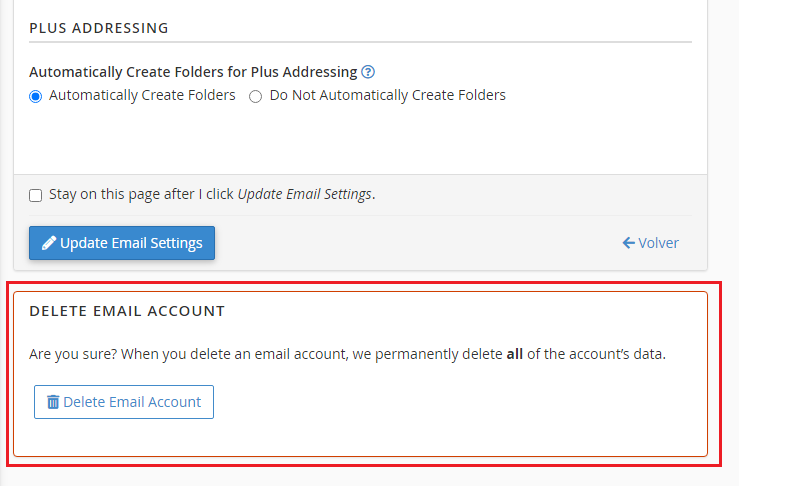
That address stops receiving mail. The messages that were in the box are deleted with it. If you need it later, you have to create it again; the previous mail does not return.
Frequent problems
- The box exists, but no mail arrives: the domain is not delegated to the hosting DNS or the change has not propagated yet.
- I cannot create it or I cannot increase its quota: the plan disk is full, or the domain does not appear in the account.
- I increased the quota and mail still does not come in: the entire hosting disk is full. Free up space: the box quota does not add disk space to the plan.
- Webmail or the program rejects the password: generate a new one, without accents or
ñ. - I deleted the box and the sender keeps writing to that address: the message does not come in. Create the same address again if you want to receive mail there again.
If the domain does not appear, the quota is not saved or the mail does not arrive with the domain already delegated, open a ticket from the client portal or consult through the online chat of the site.