
This article explains how to save a copy of sent messages in Roundcube, the hosting's current webmail client. Horde was the previous client and is no longer available. Messages remain on the server.
What is it used for?
Roundcube can keep a copy of every email you send in the Sent folder. It is useful for:
- Checking later what you sent and to whom.
- Choosing, for a specific message, not to save that copy.
Each copy takes up space in the mailbox and hosting storage.
Access: log in from the client portal → Log in to Webmail, or at https://yourdomain.com/webmail. You can also use https://webmail.yourdomain.com. Choose Roundcube.
Important: webmail.yourdomain.com opens if the domain is delegated to our servers. How to delegate it: Delegate domains to Viafacil.com. The email account must exist in cPanel. If you have not created it yet, follow Create email account.
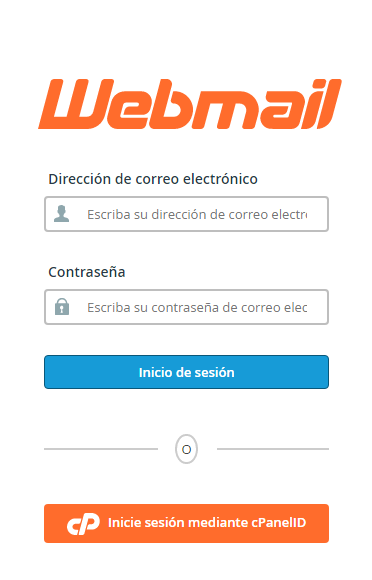
Log in to Roundcube
- Open
https://yourdomain.com/webmailand replaceyourdomain.comwith your domain, including the extension (.com,.com.ar, etc.). - Under Email Address, enter the full email address, for example
info@yourdomain.com. - Under Password, enter the password for that account.
- If prompted to choose a client, open Roundcube.
Confirm the Sent folder
By default, Roundcube saves a copy in Sent. If that folder is not receiving messages, assign it as follows:
- In Roundcube, go to Settings.
- Open Preferences → Special Folders.
- Under Sent, choose the folder where you want the copies to go. If it doesn't exist, create it first from the email folder list.
- Click Save.
Choose when composing a message
- Click Compose.
- Write the message.
- Open Composition options (the arrow next to the message headers).
- Under Save sent message in, choose Sent. If you do not want a copy of this sent message, choose do not save.
- Click Send.
This selection applies only to that message. The folder defined in Special Folders remains the default option.
Common Issues
- Looking for the gear icon and Horde options: that client is no longer available. In Roundcube, saving is configured in Special Folders and, when composing, in Save sent message in.
- I sent an email and there is no copy: check that Save sent message in is not set to do not save, and that Sent is selected in Special Folders.
- The copy doesn't arrive or Webmail doesn't save: the mailbox or hosting disk space may be full. Each saved message takes up storage space.
- webmail.yourdomain.com won't open: try
https://yourdomain.com/webmailand verify domain delegation.
Roundcube does not automatically empty the Sent folder every few months. If you need space, delete messages you no longer use from that folder. If saving still doesn't work, open a ticket from the client portal or contact us via the website's live chat.