

This document contains information on the cPanel Backup tool to download automatic copies, databases, and email configurations separately, and to exclude folders from backups.
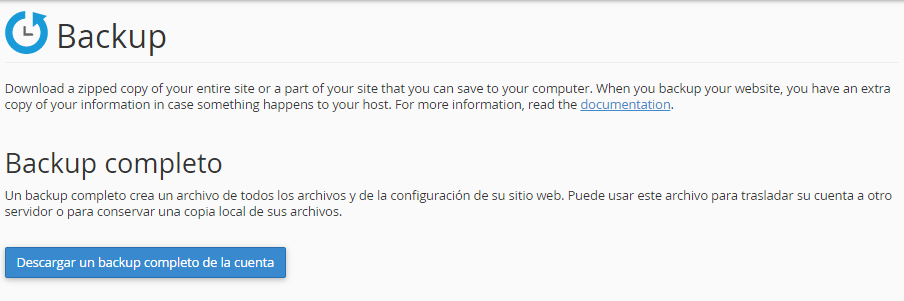
The Backup screen brings together all your account copies on a single page. Unlike the wizard, it allows you to download each element separately, such as a single database, and access the automatic copies generated by the server.
What is it for?
- Download an automatic account backup, if your service includes them.
- Download a single database, a domain's forwarders, or email filters, without generating a full backup.
- Restore a part of the account from the same screen.
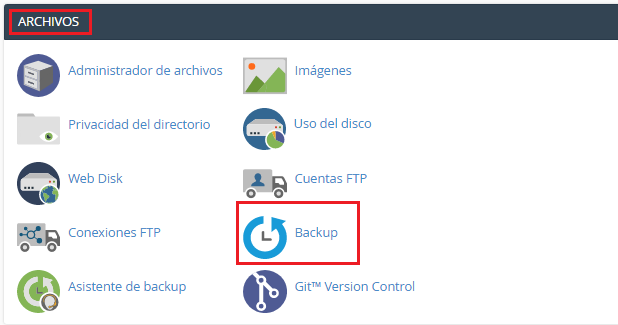
Access: log in to cPanel from the client portal → Log in to cPanel, or at https://yourdomain.com/cpanel. Then open Files → Backup.
Automatic account backups
If your service includes automatic backups, under Account Backups you will see a list of files formatted as backup-MM-DD-YYYY. Click on one to download it to your computer.
If the list does not appear, your service does not have automatic backups. You can consult the sales department, from the client portal or the online chat, to upgrade your service to one that includes them.
Download elements separately
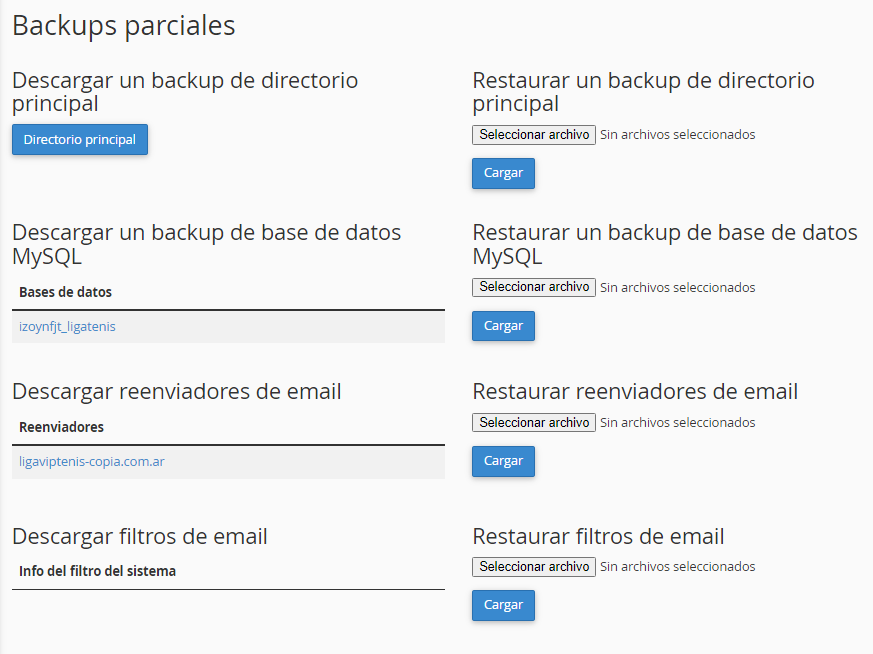
- Home Directory: all account files, including
public_htmland emails. It downloads as.tar.gz. - Databases: click on the name of the database you need. Only that one downloads, as
.sql.gz. - Email Forwarders: click on the domain to download its forwarders.
- Email Filters: saves only the account's global filters (Email → Global Email Filters). The filters that each mailbox configured on its own are not included.
To generate a full backup or restore step by step, check the article Backup Assistant and Data Restoration.
Restore from this screen
In the restoration section, choose the backup type, click Choose File, select the corresponding file, and click Upload. Only partial backups can be restored from cPanel.
Exclude folders from the backup
If you have large folders that you do not need to back up, such as a cache or files you already save separately, you can leave them out:
- Using the File Manager, create a file named
cpbackup-exclude.confin the account's home folder, outside ofpublic_html. - Type one path per line, relative to the home folder. For example:
public_html/wp-content/cache. - Save the file. Future backups will omit those paths.
Important: what you exclude will not be in any backup, not even in the one you need to recover the site. Do not exclude the mail folder or your site's folders.
Common issues
- I don't see Account Backups: your service does not include automatic backups. Consult the sales department to upgrade it.
- I restored the filters and some are missing: the backup only saves global filters. Those for each mailbox must be recreated.
- The home directory backup is very large: it includes emails. Exclude folders you don't need or download databases separately.
- The backup fails: the account is close to its space limit. Free up space or upgrade the service.
If you need to recover a backup that does not appear in the list, open a ticket from the client portal or consult via the site's online chat.