
This article explains how to upload, create and edit HTML files (and other web files) using the cPanel File Manager.
Where to publish? Files visible on your site go in public_html. The main file is usually named index.html.
Accessing the File Manager
- Log in to cPanel from the client portal or at
https://yourdomain.com/cpanel. - Go to Files → File Manager.
- Enter the
public_htmlfolder to work with your website.

This tool has functions similar to an FTP client (FileZilla): you can create folders, upload files and edit them from the browser.
Creating an HTML file or a folder
- In the toolbar, click on + File or + Folder.
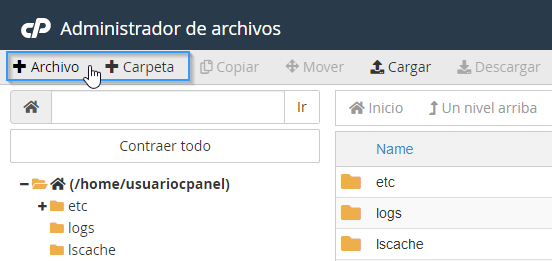
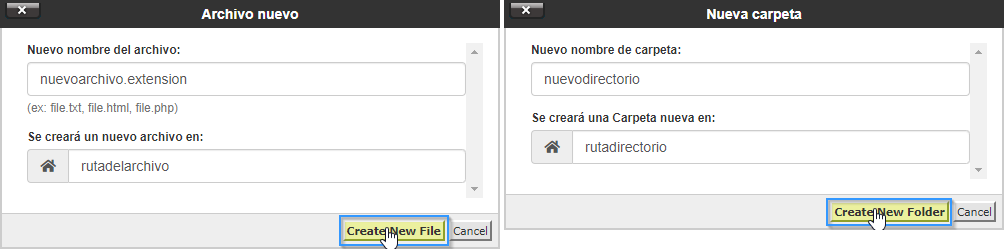
- Enter the name (e.g.
index.html,contact.html) and confirm the directory (by default, the current one). - Click on Create New File or Create New Folder.
Editing an HTML file
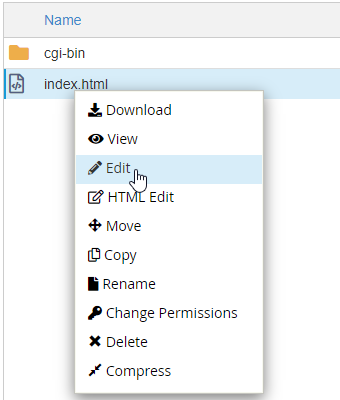
- Right-click on the file → Edit (Edit).
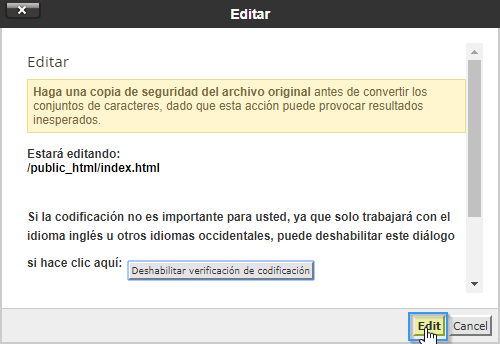
- Leave the default encoding (UTF-8) and confirm with Edit again.
- Write or modify the HTML code in the editor.
- Save the changes and test the page in the browser.
Tip: For major changes, it is advisable to have a local copy of the file before editing in cPanel. A syntax error can affect the site's display.
Uploading HTML files from your computer
- Navigate to
public_htmlor the destination subfolder. - Click on Upload (Upload).
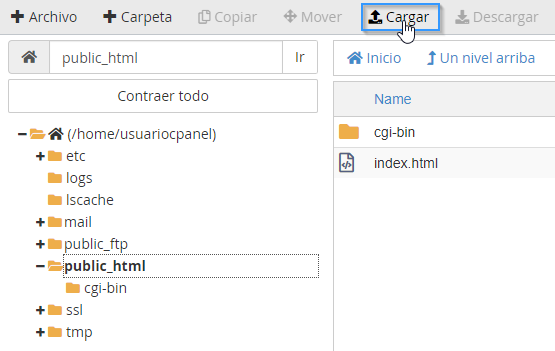
Drag the files to Drop files here to start uploading or use Select File.
Complete site in .zip: The manager does not allow uploading folders. Compress the site into a .zip, upload it and extract it with right click → Extract (Extract).
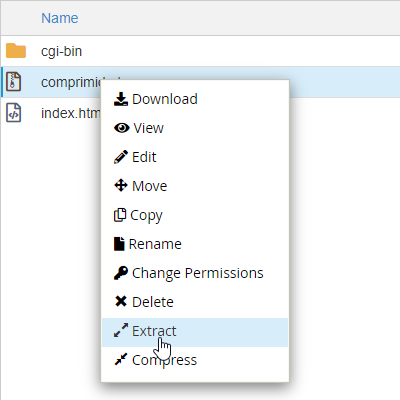
Indicate the destination folder and click on Extract File(s).
To download a local copy, select the file and use Download in the toolbar.
Moving or copying files
If you need to reorganize your site (e.g. move index.html to another folder):
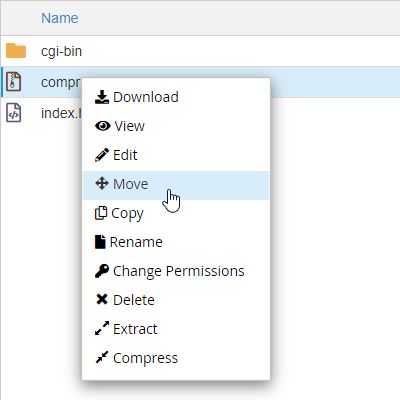
- Right-click on the file or folder → Move (Move) or Copy (Copy).
- Enter the destination path and confirm with Move File(s) or Copy File(s).
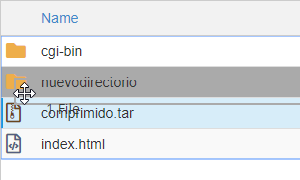
You can also drag the file onto another folder in the sidebar tree:
Verifying that the site works
- Open
https://yourdomain.com(or the specific file, e.g./contact.html). - If you see a 404 error, check that the file is in
public_htmland that the name matches (uppercase/lowercase matters in Linux). - If the page appears blank, check the edited HTML for syntax errors.
Common issues
- I cannot upload files: it may be a full disk; see Disk space full: how to fix it.
- I uploaded the HTML but it cannot be seen: confirm the
public_htmlpath and the file name. - Garbled characters in text: use UTF-8 encoding when editing.
- I need to upload many files: consider FTP with FileZilla for large transfers.
If you cannot create, edit, or upload HTML files from cPanel, open a ticket from the client portal or consult via the site's online chat.