
This article explains how to set a contact email in cPanel to receive service notifications. That address is also used by the panel if you need to recover your cPanel password.
What is it for?
cPanel sends alerts to these addresses when account events occur. You can choose which ones in the form:
- The account disk usage is approaching its limit.
- The bandwidth transfer is approaching its limit, if the service has a limit and the notification is enabled.
- An email mailbox is approaching or exceeding its quota.
- Someone changes the cPanel password.
- The contact address itself is changed.
The client portal password and each mailbox password are separate. This email does not recover them.
Important: use an address outside of your hosting, for example, your personal email. If you set it to a mailbox within this same account and that mailbox fills up, the notification will not arrive. To change the addresses, the form requires the cPanel password.
Access: log in to cPanel from the client portal → Log in to cPanel, or at https://yourdomain.com/cpanel. Open Preferences → Contact Information. If that icon is not there, the same fields appear under Preferences → Account Preferences.
Setting the email
- Open Preferences → Contact Information.
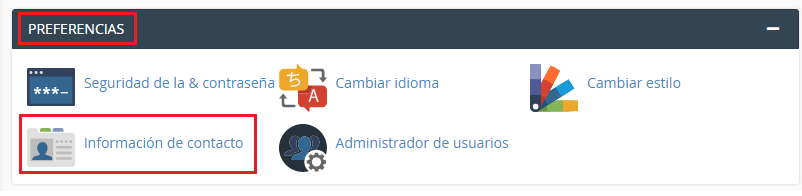
- Type the address in the first field. If there is a second field, you can add another.
- Type the cPanel password where the form asks for it.
- Check the notifications you want to receive. Each checkmark means an email alert when that event occurs.
- In the certificate block, leave AutoSSL failures checked unless you don't need an email for every successful renewal.
- Click Save.

The list of checkmarks depends on the service: some may not be present. If a disk or transfer alert arrives, free up space or upgrade the service. To upgrade it, write to the sales department from the client portal or via the online chat.
Common issues
- I saved and no email arrived: alerts are sent when the event occurs, not when saving. Also check the spam folder of that address.
- I cannot change the address: you must type the current cPanel password in the form.
- I requested the cPanel password and it didn't arrive: the contact address was empty, or it is a mailbox on this hosting that cannot receive mail. Set an external email while you can still log in.
- A full mailbox alert arrived: that alert refers to that mailbox's quota. Messages can be freed up from Webmail, or the quota can be increased if the account disk still has available space.
- The icon is missing: it may be disabled in the service. Open a ticket from the client portal.
If you saved an external email, the checked notification already occurred and it didn't arrive, open a ticket from the client portal or inquire via the site's online chat.