
This document contains information to install Moodle from Softaculous in cPanel and get it ready to create your courses.
Moodle is an open source online learning platform. It is used to create courses, upload materials, take exams and track student progress. It installs in a few minutes with Softaculous Apps Installer.
What is it used for?
- Setting up a virtual campus for a school, university or company.
- Publishing courses with videos, files, forums, assignments and quizzes.
- Managing students, teachers and grades.
Before installing: Moodle requires a recent PHP version and the max_input_vars value set to 5000 or more. Adjust it in cPanel, under Software → MultiPHP INI Editor. Moodle also takes up quite a bit of disk space and memory, especially with many students or videos. If your service falls short, you can upgrade it by contacting the sales department from the client portal or the online chat.
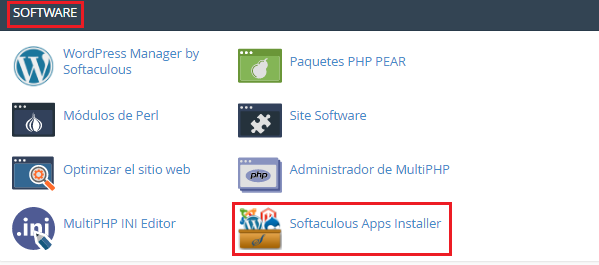
Access: log in to cPanel from the client portal → Log in to cPanel, or at https://yourdomain.com/cpanel. Then open Software → Softaculous Apps Installer.
Install Moodle
- In the Softaculous search box, type
Moodleand open it.

- Click Install and fill in Software Setup:
- Choose Installation URL: the domain and folder where you will view Moodle. For example, leave the folder empty for
https://yourdomain.com, or typecampusforhttps://yourdomain.com/campus. - Choose the version: leave the version proposed by Softaculous, which is the most recent compatible with the server.
- Data Directory: the
moodledatafolder, where Moodle stores course files. Leave the path proposed by Softaculous, which is placed outside ofpublic_html. Never put it inside the public folder. - CRON Job: the task that sends notifications, processes grades and cleans up temporary files. Moodle recommends that it run every minute.
- Choose Installation URL: the domain and folder where you will view Moodle. For example, leave the folder empty for

- Fill in Site Settings and Admin Account:
- Site Name and Site Description: the name and description of the campus. You can change them later.
- Admin Username and Admin Password: use a name other than
adminand a strong password. - First Name, Last Name and Admin Email: the administrator details. Platform notices are sent to this email.
- Select Language: choose Spanish.

- Click Install. Upon completion, Softaculous displays the campus address and the administration panel address.

After installing
- Log in with the admin user and check Site administration → Notifications, where Moodle notifies if any requirement is missing.
- Configure outgoing mail so students receive notifications. Use a mailbox from the domain.
- Update Moodle from the Softaculous installation list. Make a backup first.
Common issues
- The installation warns that a PHP requirement is missing: change the PHP version in Software → Select PHP Version, or adjust
max_input_varsin the MultiPHP INI Editor. - Notifications do not arrive or tasks do not progress: the scheduled task is not running. Check it in Advanced → Cron Jobs.
- I cannot upload large files to a course: the limit depends on
upload_max_filesizeandpost_max_sizein the MultiPHP INI Editor, and the course settings. - I am running out of space: the
moodledatafolder grows with each file and course backup. Delete old backups or upgrade your service.
More information on how to administer Moodle in the official Moodle documentation. If you have trouble with the installation, open a ticket from the client portal or inquire via the site's online chat.