

This document contains information to create, edit, and delete DNS records for your domain with the cPanel Zone Editor, and to reset the zone to its original values.
The Zone Editor allows you to manage the DNS records of your domain. These are what tell the internet where your site is located, which server mail must reach, and what external services are authorized to use your domain.
Important: Zone Editor changes only take effect if the domain uses the hosting DNS. If the DNS are hosted with another company, for example the registrar or Cloudflare, the records must be edited in that company's panel.
Most used record types
- A: points a name to an IPv4 address. For example,
store.yourdomain.comto the IP of another server. - AAAA: the same as an A record, but with an IPv6 address.
- CNAME: points a name to another name. For example,
shop.yourdomain.comto the address provided by an online store platform. - MX: indicates which server receives email. This is explained in the article Add a new MX entry.
- TXT: stores text. It is used to verify the domain in services like Google or Microsoft, and for SPF, DKIM, and DMARC.
- CAA: indicates which entities can issue SSL certificates for your domain.
- SRV: indicates the server and port for specific services, such as certain telephony or chat systems.
Access: log in to cPanel from the client portal → Log in to cPanel, or at https://yourdomain.com/cpanel. Then open Domains → Zone Editor.
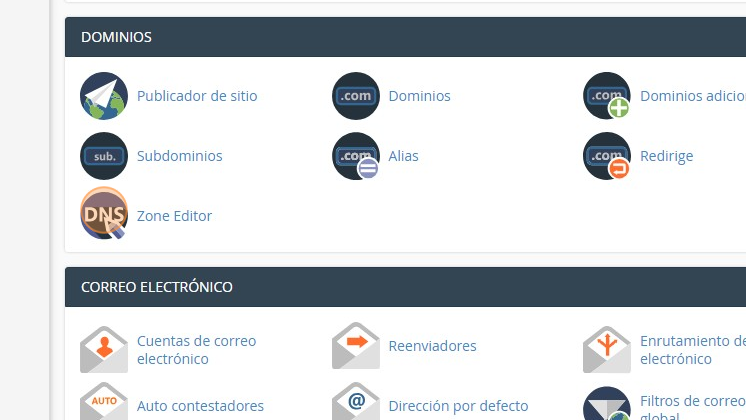
Add a record
- Next to the domain, click Manage.
- Click Add Record, or the arrow next to the button to directly select the type.
- Complete the details:
- Name: the full name, for example
blog.yourdomain.com. For the main domain, typeyourdomain.com. - TTL: the time, in seconds, that other servers cache the record before querying it again. If you are not sure, leave the default value.
- Type and Record: the type and its value, for example the IP or text provided by the external service.
- Name: the full name, for example
- Click Save Record. If you added multiple, use Save All Records.
For simpler cases, the main screen also features + A Record, + CNAME, and + MX buttons next to each domain.
Edit or delete a record
- Click Manage next to the domain. To quickly find a record, use the search bar or filter by type.
- To modify it, click Edit, change the details, and click Save Record.
- To delete it, click Delete and confirm with Continue.
Important: before changing anything, note down the original value. Do not delete records created by cPanel for the site, mail, and panel, such as mail, webmail, cpanel, or default._domainkey: the site or mail may stop working.
Reset the zone
If something stopped working and you do not know what you changed, you can revert the zone to the hosting's original values:
- Click Manage next to the domain.
- Under Actions, choose Reset Zone.
- Confirm with Continue.
All changes you have made will be deleted, such as records for external services. The system attempts to preserve TXT records, but make sure to note down any you may need to reload beforehand.
Common issues
- I changed a record and it doesn't work: changes take time to propagate depending on the TTL, and can take up to 48 hours. Also check that the domain is using the hosting DNS.
- It won't let me create a CNAME: a name with a CNAME cannot have other records. If an A record already exists with that name, delete it first. The main domain (
yourdomain.com) does not support CNAME. - The external service does not verify my domain: copy the TXT record exactly as provided, without extra spaces, and wait for propagation.
- I don't see a record type I need: open a ticket and support will add it for you.
- Email or the site stopped working after a change: put the original value back or reset the zone.
If you need help configuring a DNS record, open a ticket from the client portal or ask via the site's online chat.