

This document contains information to install SitePad Website Builder from Softaculous in cPanel and create your website with its visual editor.
SitePad is a website builder that allows you to put together your page by dragging blocks over a template, without programming. It is installed from Softaculous Apps Installer and, afterwards, it is edited from the browser.
What is it for?
- Create an institutional site, a portfolio, or a presentation page in a short time.
- Choose from hundreds of templates and customize texts, images, and colors.
- Publish changes with one click, without using FTP.
Access: log in to cPanel from the client portal → Log in to cPanel, or at https://yourdomain.com/cpanel. Then open Software → Softaculous Apps Installer.
Install SitePad
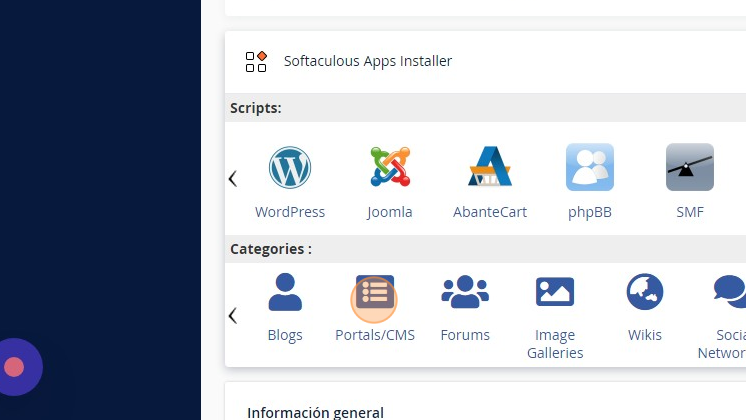
- In Softaculous, open the Portals/CMS category or type
SitePadin the search bar.
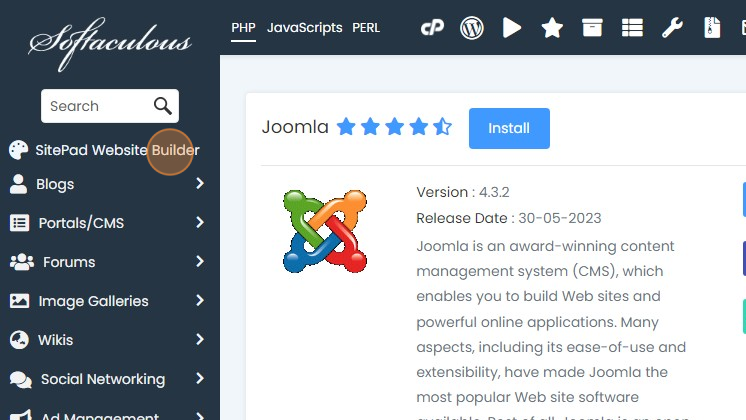
- In the list on the left, select SitePad Website Builder.
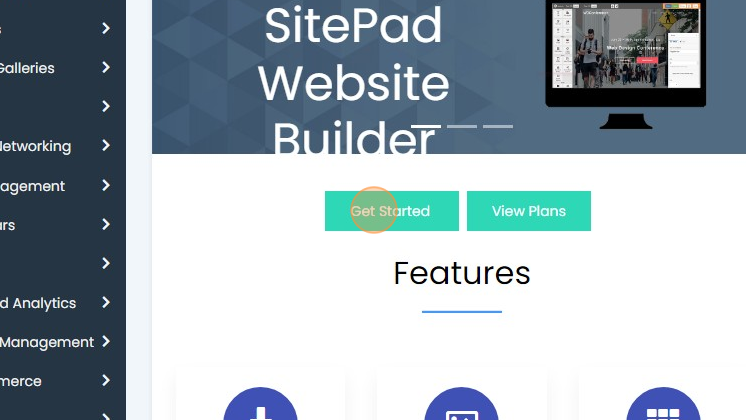
- Click on Get Started.
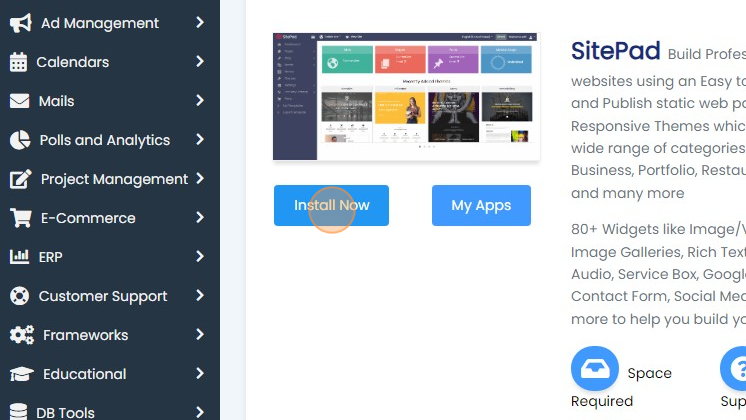
- Click on Install Now (Install now).
- Fill in the installation details:
- Domain: choose the domain or subdomain of the site.
- Directory: leave it empty so that the site stays in the root of the domain (
https://yourdomain.com). - Site name, administrator username and password: save them, because you will need them to edit.
- Language and initial template.
- Click on Install. The installation is done on the server and takes a few seconds.
- Upon completion, Softaculous displays two links: the site link and the administration panel link.
Edit and publish the site
- Enter the administration panel with the username and password you chose.
- Open the page you want to modify with the editor. Change texts and images and add blocks by dragging them.
- Click on Publish (Publish) so that the changes can be seen on the site.
Important: if the domain already has a site, installing SitePad in the root may replace its files. Make a backup beforehand. The site occupies disk space of the service.
Frequent problems
- I cannot find SitePad in Softaculous: it depends on the server license. Consult the sales department from the client portal or the online chat. As an alternative, you can use Sitejet Builder, in Domains.
- The installation warns that the folder is not empty: choose another folder or a subdomain, or make a backup and empty the folder.
- I made changes and they are not visible on the site: you forgot to click on Publish, or the browser shows a cached version. Reload with
Ctrl + F5. - I do not remember the administrator password: in Softaculous, open the list of installations, click on the SitePad edit pencil and change it.
- I do not have space for the site: free up space or upgrade your service by consulting the sales department.
If you need help creating your site, open a ticket from the client portal or consult via the site's online chat.