
This document contains information on how to create, download, and schedule backups of your website, email, and databases in the Plesk panel.
From the Backup Manager you can save a complete copy of your service: site files, databases, email, and configuration. We recommend making a backup before any major change, such as updating your site, installing plugins, or migrating.
Access: log in to the client portal, open your service and, in the Actions block, click on Log in to Plesk. Then go to Websites & Domains and click on Backup Manager.
Create a backup
- In Backup Manager, click on Back Up.
- In Back Up, choose what to include. All options are checked by default:
- Domain configuration: always included.
- Mail configuration and content: email accounts and their messages.
- User files and databases: your site's files and databases.
- In Store in, leave Server storage, or configure remote storage if you want to save it outside the server.
- Choose the Type:
- Full: copies everything. Recommended if you are going to download the backup or make a major change.
- Incremental: copies only what changed since the last backup. Databases are always copied fully. If there is no previous backup, the first one is made full.
- Optionally, complete:
- Comments: a description to identify the backup, for example "Before updating the site".
- Exclude log files: reduces the backup size.
- Exclude specific files from the backup: to leave out folders you don't need, such as temporary files.
- When a backup task completes, send an email to: to receive a notification upon completion.
- Click OK. The backup is created in the background and appears in the list when finished.
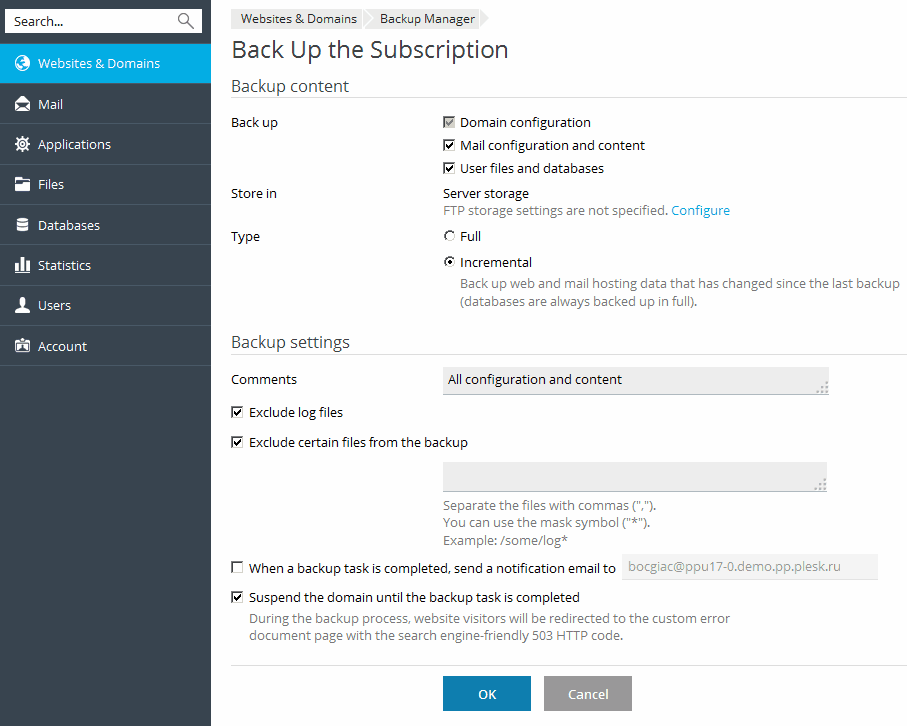
Important: the Suspend the domain until the backup task is completed option takes your site offline while the backup runs. Use it only if you need no changes to occur during the copy.
Download a backup to your computer
In the Backup Manager list, click the download icon for the backup you want. We recommend keeping a copy on your computer from time to time, in addition to the one kept on the server.
Schedule automatic backups
Click on Schedule so that Plesk creates backups periodically, for example once a week, without you having to do it manually.
Common issues
- The backup fails or I don't have enough space: exclude log files, delete old backups you no longer need, or download and delete them from the server. If your site needs more space, you can upgrade the service through the sales area.
- There are backups in the list that I didn't make: these are automatic system backups. To have a complete copy of your files and databases, create your own backup.
If you need help with your backups, open a ticket from the client portal or consult the site's online chat.