

This document contains information to generate a CSR (Certificate Signing Request) in cPanel, fill in each field correctly, and submit it to the entity issuing your SSL/TLS certificate.
The CSR (Certificate Signing Request) is the order that you send to the issuing authority so they deliver a paid SSL/TLS certificate to you. It contains your domain and your organization details. Upon generating it, cPanel also creates the private key, which remains saved in your account.
When do I need a CSR?
- When you purchase a paid certificate, for example, one that validates the company or a wildcard for all subdomains.
- When the issuing authority asks you to reissue or renew the certificate.
If you use the automatic free certificate of the service, you do not need to generate a CSR: the server does it by itself.
Access: log in to cPanel from the client portal → Log in to cPanel, or at https://yourdomain.com/cpanel. Then open Security → SSL/TLS.
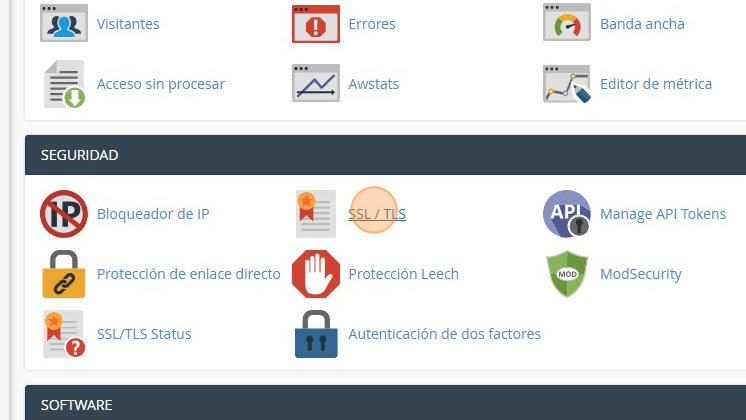
Generate the CSR
- Under Certificate Signing Requests (CSR), click Generate, view, or delete SSL certificate signing requests.
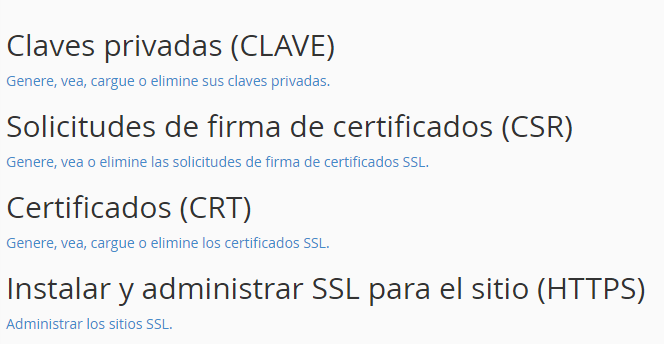
- Fill out the form:
- Key: leave Generate a new 2048-bit RSA key, unless the issuing authority asks you for another one.
- Domains: type the exact domain that the certificate will cover, for example
yourdomain.com. For a wildcard certificate, type*.yourdomain.com. - City and State or Province: type them out completely, without abbreviations. For example,
Buenos Aires. - Country: choose the country of the organization, for example AR for Argentina.
- Company: the business name, as it appears in official records. If it is for an individual, type your name.
- Company Division: optional, for example
Systems. - Email: a valid contact address.
- Passphrase: leave it blank. Most entities do not use it.
- Description: a text to recognize the CSR in the list, for example
Certificate 2026.
- Click Generate.
- Copy the complete CSR text, including the
-----BEGIN CERTIFICATE REQUEST-----and-----END CERTIFICATE REQUEST-----lines, and paste it into the issuing authority's form.
Important: do not delete the private key that was created along with the CSR. The certificate delivered to you only works with that key. If you delete it, you will have to generate a new CSR and ask for the certificate to be reissued.
After generating it
- The issuing authority validates your domain, and depending on the certificate type, your company as well. Then it sends you the certificate (CRT) and, generally, an intermediate bundle (CA bundle).
- To install it, follow the steps in the SSL/TLS Management article.
If you still do not have the certificate, check out the options at SSL Certificates or consult the sales department from the client portal or the online chat.
Common issues
- The entity rejects the CSR: check that you copied the complete text, with the BEGIN and END lines, and that it has no added spaces.
- The certificate does not cover
www: most entities includewww.yourdomain.comautomatically when the CSR is foryourdomain.com. Confirm it with the entity before sending it. - Company details do not match: in certificates that validate the organization, the business name, city, and country must match official records. Generate a new CSR with the correct details.
- Upon installation, the certificate does not match the key: it was generated with another CSR or the key was deleted. Generate a new CSR and request reissuance.
If you need help generating the CSR, open a ticket from the client portal or consult through the site's online chat.