
This article explains how to create an email filter for a mailbox in cPanel. The rule only checks new messages for that address and defines what to do when matched.
What is it for?
Each mailbox can have its own filters, separate from the service's global ones. With a mailbox rule you can:
- Discard messages from a sender or with a specific subject.
- Forward them to another address.
- Deliver them to a folder in that same mailbox.
The global filter, under Global Email Filters, runs first and affects all mailboxes. This filter runs afterwards and only on the account you are managing.
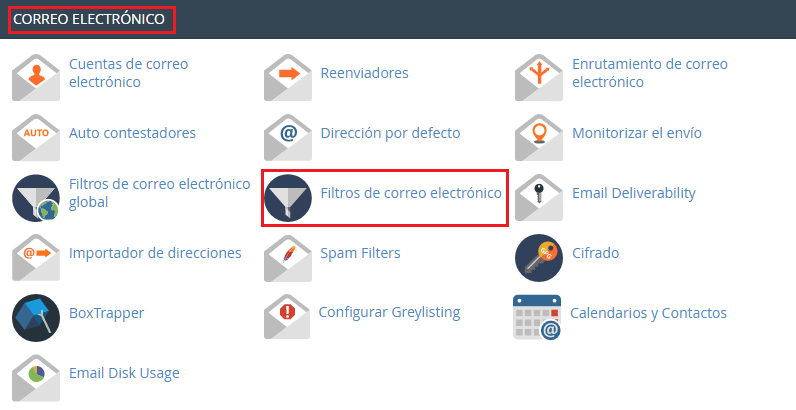
Access: log in to cPanel from the client portal → Log in to cPanel, or at https://yourdomain.com/cpanel. Then go to Email → Email Filters.
Important: a poorly constructed filter can leave that mailbox without valid mail. If the condition is too broad and the action is to discard, the message will not reach the inbox. The filter does not review messages that were already saved.
Create the filter
- Log in to cPanel.
- Open Email → Email Filters.
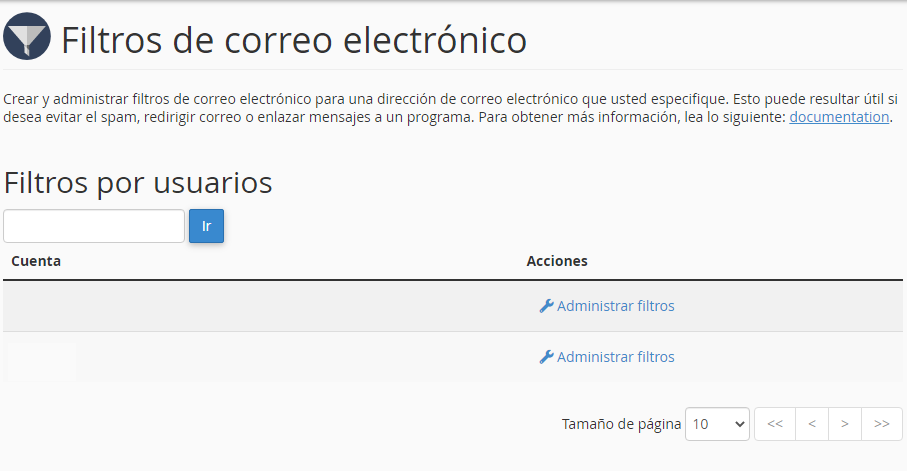
- For the mailbox you want to filter, click Manage Filters.
- Click Create a New Filter.
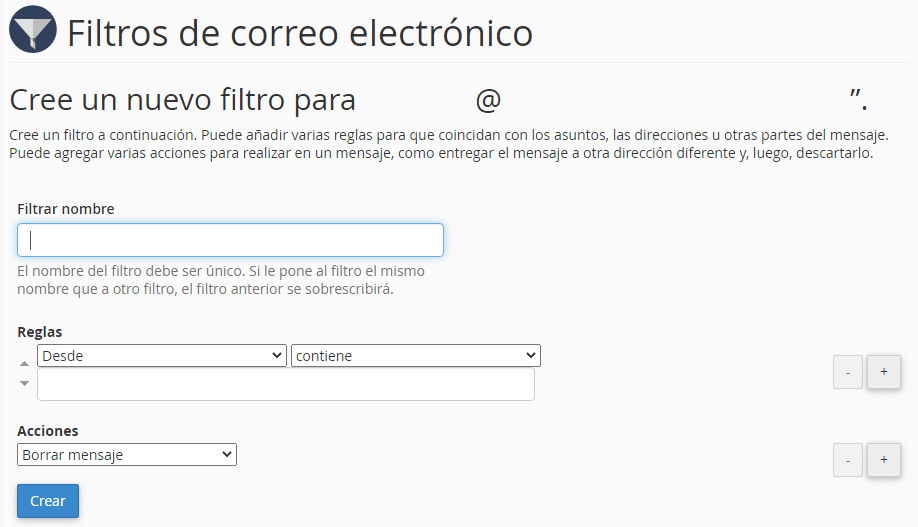
- Type a name to recognize it later.
- Build the condition. Choose which part of the message to check (sender, recipient, subject, body, or other header), how to compare it, and the text that must match.
- Choose the action: discard the message, forward it, reject it with a notice, or deliver it to a folder.
- Click Create.
If the action is to deliver to a folder, create it beforehand in Webmail for that mailbox. If it does not exist, the message may return to the inbox.
In that mailbox's list you can test an example message, edit the rule, or delete it. cPanel applies the filters in the order of the list. The first one that discards or rejects the message stops the subsequent ones.
Common issues
- The mailbox stopped receiving valid mail: the condition is discarding too much. Delete the filter or limit the text, for example the full sender.
- The filter does not act on an old message: it only evaluates mail arriving after you create it.
- I configured it on one mailbox and it doesn't affect the others: this is the behavior of this filter. For all mailboxes, use Global Email Filters.
- A global filter and this one clash: the global one runs first. If that one already discarded the message, the mailbox filter doesn't see it.
- I requested a folder and the message is still in the inbox: the folder does not exist in that mailbox. Create it in Webmail and try again.
If the filter blocked mail from that mailbox, you cannot narrow down the condition, or it does not apply to the new message, open a ticket from the client portal or consult via the site's online chat.