
This document contains information for multiple domains to display the same website in cPanel, by creating alias (pointed) domains and redirecting them to the main domain without harming SEO.
A domain alias (also called pointed domain or parked) displays the same content as your main domain. It is used, for example, so that yourdomain.com.ar and yourdomain.com lead to the same site, or to protect variations of your brand.
Alias or add-on domain?
- Alias: shares the main domain's folder and displays the same site. This is the one explained in this article.
- Add-on domain: has its own folder and its own site. It is explained in the article How to add add-on domains.
Access: log in to cPanel from the client area → Log in to cPanel, or at https://yourdomain.com/cpanel. Then open Domains → Domains. The Aliases screen from older versions no longer exists.

Before you begin
- The domain must be registered and have its DNS pointing to the hosting servers.
- Your service must allow more domains. If you have reached the limit, you can upgrade your service by consulting the sales department from the client area or the online chat.
Create a domain alias
- Click on Create A New Domain.
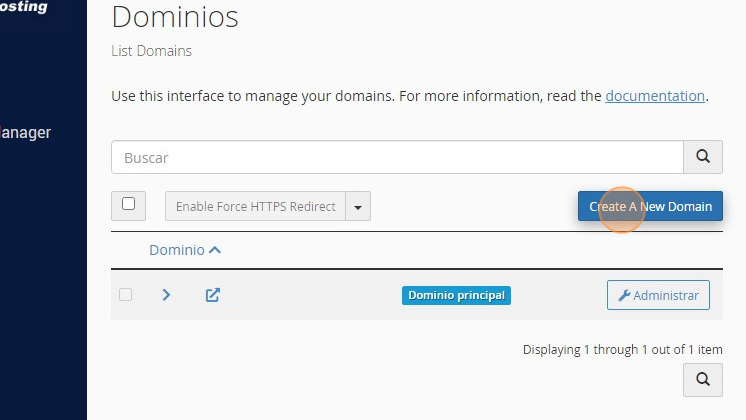
- Under Domain, type the name in lowercase and without
www, for exampleyourdomain.com.ar. - Leave checked the option to share document root with the main domain. That is what turns it into an alias.
- Click on Submit.
From that moment on, the alias displays the same site as the main domain.
Redirect the alias to the main domain (recommended)
If two domains display the exact same content, search engines consider it duplicate content and that can harm your ranking. It is best that the alias redirects to the main domain, so visitors and search engines always arrive at a single address:
- Open Domains → Redirects.
- Under Type, choose Permanent (301).
- In the domain dropdown, choose the alias, for example
yourdomain.com.ar, and leave the path blank. - Under Redirects to, type the full address of the main domain, for example
https://yourdomain.com. - Choose Redirect with or without www. and check Wildcard Redirect, so internal pages redirect as well.
- Click on Add.
Important: do not create the redirection on the main domain, because the site would enter a loop and fail to load. Always choose the alias in the dropdown. For the alias to work with https://, it must also have its SSL certificate issued.
Delete an alias
In Domains → Domains, click on Manage next to the alias and then on Remove Domain. The main site is not modified, because the alias has no files of its own. If you created a redirection, delete it as well in Redirects.
Common issues
- The alias does not display the site: its DNS is not pointing to the hosting or is still propagating, which can take up to 48 hours.
- The alias displays an empty folder: it was created without sharing the document root. From Manage, change its folder to that of the main domain, or delete it and recreate it.
- "Too many redirects" error: the redirection was created on the main domain or points to the alias itself. Check it in Redirects.
- The browser warns that the connection is not secure on the alias: its SSL certificate has not been issued yet. Check it in Security → SSL/TLS Status.
- It won't let me add the domain: you have reached the service limit. Consult the sales department.
If you need help pointing multiple domains to your site, open a ticket from the client area or consult via the site's online chat.