
This article explains how to view the content of your Web Hosting service without having registered or delegated the domain, by editing the hosts file on your computer.
What is this configuration for?
The hosts file allows your PC to resolve a domain to a specific IP, only on your computer. This way you can test your site before completing the registration or delegation of the domain in Nic.ar or another registrar.
More information about this file: Hosts file (Wikipedia).
Important: This configuration only affects your PC. It does not replace the registration or delegation of the domain. Once the domain is registered or delegated, delete the entry you added in the hosts file.
Information you will need
Before starting, have handy:
- Hosting service IP: appears in the Service Manual sent when activating your plan, or in Sent Emails of the portal.
- Domain name: the domain you haven't delegated yet (example:
mydomain.com.ar). - Viafacil primary DNS server: also indicated in the Service Manual (only if you are going to query the IP with an external DNS tool).
If you don't know the IP associated with your service, check the manual or contact support before continuing.
Option 1: Edit hosts with OSHE (recommended on Windows)
OSHE (Online Solutions Hosts Editor) is an application that makes it easy to edit the hosts file on Windows.
Step 1 — Download and install
- Download OSHE Hosts Editor from: appnee.com/oshe-hosts-editor.
- Run the oshe.exe file.

Step 2 — Add a record
- Choose the Add record option (icon indicated in the previous image).
- Fill in the fields in the window that opens:
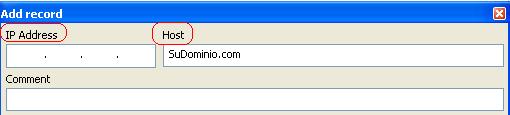
| Field | What to fill in |
|---|---|
| Ip Address | The IP of your hosting service (from the Service Manual). |
| Host | Your domain not yet delegated (example: mydomain.com.ar). |
| Comment | Optional description (example: Viafacil - test). |
Step 3 — Save changes
- Press Accept.
- Press Save changes to apply the modification.
From your PC you should now be able to access the site using the configured domain.
Option 2: Manual editing of the hosts file (Windows)
If you prefer not to use OSHE, you can edit the hosts file directly:
- Go to Start → Run (or press
Win + R). - Type:
notepad %windir%\system32\drivers\etc\hostsand press Enter. - At the end of the file, add a line with this format:
SERVICE_IP yourdomain.tld www.yourdomain.tld
Example: if the IP is 200.11.22.33 and the domain is test.com:
200.11.22.33 test.com www.test.com
- Save the file and close Notepad.
How to get the IP if you don't have it?
We recommend getting the IP from the Service Manual or from Sent Emails.
Alternatively, you can use an external DNS query tool:
- Go to find-ip-address.org/dns-lookup.php.
- Fill in:
- IP / Hostname / Domain: your domain (example:
mydomain.com). - DNS Server: the primary DNS server indicated in your Service Manual.
- Option: A (ip address).
- IP / Hostname / Domain: your domain (example:
- Press Resolve.
- Take the IP that appears in the ANSWER SECTION section of the result.
Final reminder
Important note: With this configuration, only you from your PC will see the site with that domain. When you complete the registration or delegation, delete the line from the hosts file (or the record in OSHE) to avoid conflicts.
Do you need additional help?
If you have questions about your service IP or domain configuration, you can:
- Consult Aura in the online chat of the site.
- Open a ticket in Viafacil.
To delegate your domain when it is ready, check the article on Nic.ar domain delegation.