

This article explains how to activate the spam filter in cPanel so that new messages with a high score are marked, how to get them out of the inbox, and how to allow or block senders.
What is it for?
The filter uses SpamAssassin. It checks every new email and assigns a score to it. If that score reaches the threshold, the message is marked. With the factory settings the threshold is 5, and [possible spam] may appear in the subject. From this screen you can:
- Enable or disable the analysis of new emails.
- Move marked items to the spam folder, out of the inbox.
- Add senders to the whitelist or blacklist.
Access: log in to cPanel from the client portal → Log in to cPanel, or at https://yourdomain.com/cpanel. Then go to Email → Spam Filters.
Activate the filter
- Log in to cPanel.
- Open Email → Spam Filters.

- Activate the processing of new emails.
- Also activate moving new spam to a separate folder (Spam Box). Those messages go to the spam folder and stop showing in the inbox.

The filter only checks messages that arrive after activating it. A lower score than 5 marks more emails. A higher one marks fewer. It is best to leave it at 5 unless you already know how the score is calculated.
Important: the whitelist and blacklist are account-wide. If you add an email or a domain, the change applies to all mailboxes, including those of add-on domains. Do not activate automatic deletion if you do not want to lose those messages: what is deleted that way cannot be recovered. Calculated score options are for those who already know SpamAssassin.
Whitelist and blacklist
- On the same screen, open the additional settings.

- Go to Whitelist (Emails Always Allowed) for senders who must always arrive.
- Add a full mailbox or a domain.
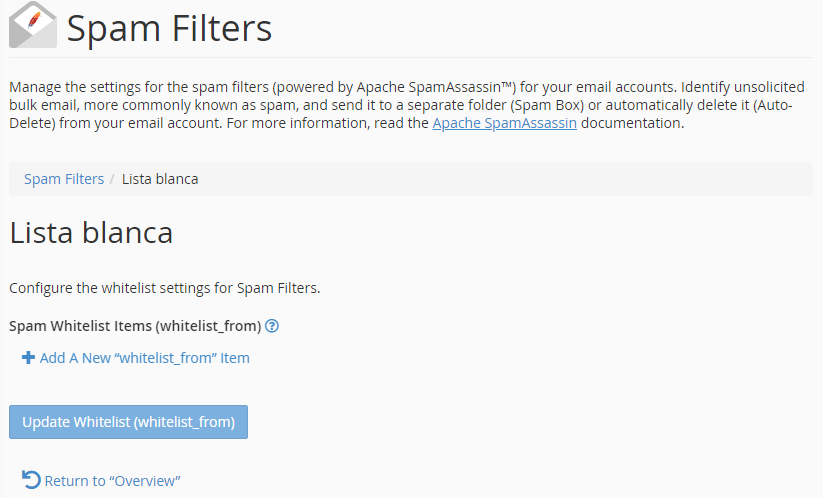
- Go to Blacklist (Emails Never Allowed) for senders you do not want to receive.
- Add a full mailbox or a domain.

In Roundcube, when marking a message as Not spam, that sender goes to the whitelist. When marking it as Spam, it goes to the blacklist. You can select multiple messages together and they are added at once.
The documentation for the tool is at spamassassin.apache.org.
Common issues
- A valid email arrives as [possible spam]: add that mailbox or domain to the whitelist, or mark it as Not spam in Roundcube.
- Spam keeps entering the inbox: confirm that processing is active and that Spam Box is enabled. The filter does not re-check messages that were already in the mailbox.
- I blocked a domain and stopped receiving other emails: the list is account-wide. If you loaded a broad domain, like that of an email provider, remove it from the blacklist.
- I changed the score and now almost everything is marked, or nothing is marked: return the threshold to 5.
- One mailbox's list affected the others: this is the behavior of this screen. The exception applies to all mailboxes in the account.
If the filter cannot be activated, an allowed sender remains marked, or extra mail was blocked, open a ticket from the client portal or consult via the site's online chat.