
This article explains how to publish the site with Dreamweaver via FTP on the hosting. The main domain files must go in public_html.
What is it for?
Dreamweaver connects to the server and uploads the pages. The connection uses the cPanel username, or an FTP user created for a folder, and port 21.
- The password is the cPanel one. The client portal password does not open FTP.
- If the domain does not yet point to this hosting, FTP Address takes the server name shown in the service details.
- Once the domain is delegated, you can use
yourdomain.comorftp.yourdomain.com, withoutwww.
Important: in Root Directory write public_html for the main domain. If you leave that field empty, the files may upload outside the site. On an add-on domain, the folder is the document root shown by cPanel in Domains.
Configure the server
- Open Dreamweaver.
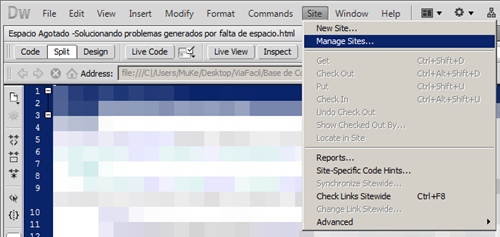
- Go to Site → Manage Sites....
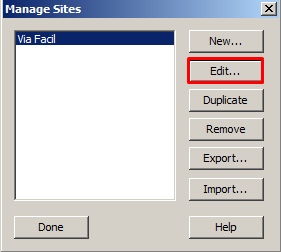
- Choose the project and click Edit. For a new one, New.
- In Site Setup, open Servers.
- If the list is empty, add a server. Check Remote.
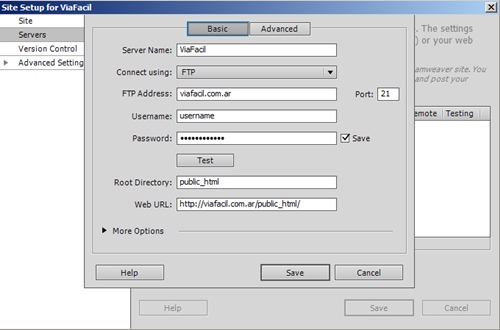
- Server Name: a name to recognize it, for example the domain.
- Connect using: FTP.
- FTP Address: the domain without
www, or the server name. - Port:
21. - Username: the cPanel username. If you created an account in FTP Accounts, the username is the one listed there, with the domain included.
- Password: that user's password.
- Root Directory:
public_html. - Web URL:
https://yourdomain.com.
In More Options, leave UsePassive FTP checked. Without that, the test often drops.
- Click Test. When the connection responds, save with Save.
Upload the files
- Open the Files panel.
- Connect the remote site.
- Choose the files and use Put, the upward arrow.
Put sends the local copy to the server, inside the folder left in Root Directory.
Common issues
- Test fails with username or password: it must be the cPanel one, or the FTP account one. The portal one does not work.
- Test hangs waiting: check Use Passive FTP and verify that the port is
21. - Does not resolve the domain: in FTP Address use the server name from the service details.
- Uploaded and the site didn't change: the files ended up outside
public_html, or in another domain's folder. Fix Root Directory and publish again. - FTP user won't log in: in cPanel, under FTP Accounts, the username includes the domain.
If Test responds and Put does not leave the files in public_html, open a ticket from the client portal or consult via the site's online chat.