
This article explains how to create a MySQL database in cPanel, how to import a .sql file, and how to download a backup copy using phpMyAdmin.
What is it used for?
A database stores a website's dynamic content, such as users, orders, or posts. From cPanel, you can:
- Create the database, a user, and their permissions.
- Import a
.sqlor.sql.zipfile into an empty database. - Export a copy of the database to your computer.
Access: log in to cPanel from the Client Portal → Log in to cPanel, or at https://yourdomain.com/cpanel. Then go to Databases → MySQL Databases.
Create the database and user
- Log in to cPanel.
- Open Databases → MySQL Databases.

- Under Create New Database, enter a name and click Create Database.
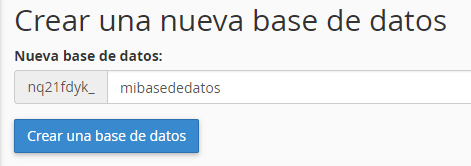
- Under Current Databases, you will see the full name. cPanel adds your account username as a prefix, for example
account_store.

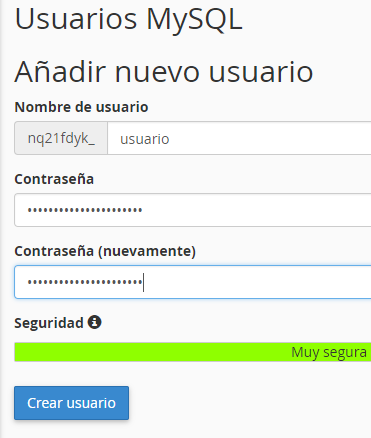
- Under Add New User, fill in the username and password. You can use cPanel's password generator.
- Click Create User.
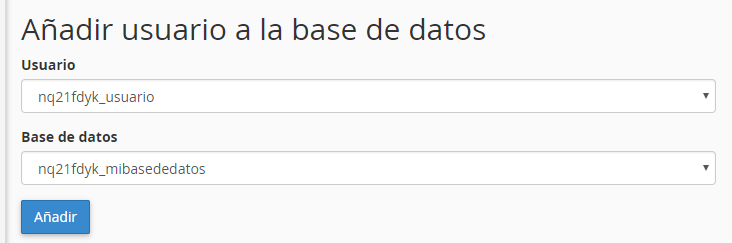
- Under Add User to Database, select the user and the database.
- Click Add.
- Check ALL PRIVILEGES.
- Click Make Changes.
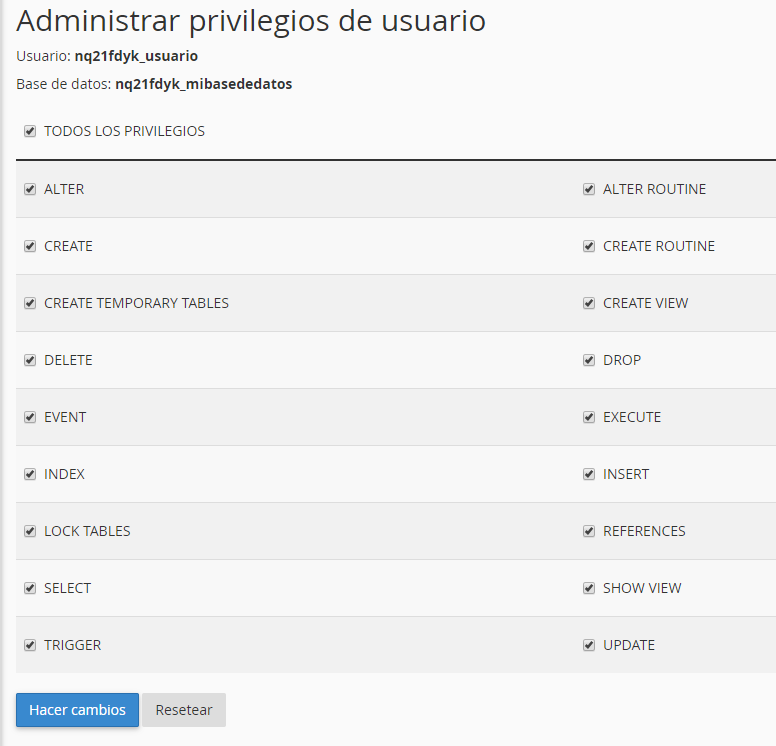
cPanel confirms that the changes have been saved.
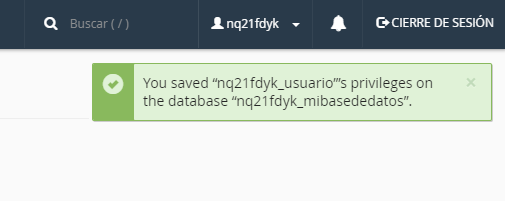
Important: in your application, use the full database name and username, including the prefix. Creating the database is not enough: the user must be added to that database with permissions saved. To import a file, the database must exist and it is recommended that it be empty.
Import a database
- In cPanel, open Databases → phpMyAdmin.
- In the left column, click the name of the empty database.
- Click Import.

- Click Choose File and select the
.sqlor.sql.zipfile from your computer. - Click Go.

If the import finishes successfully, phpMyAdmin displays a green message and the tables will appear on the left.

Download a backup copy
- Access phpMyAdmin.
- Click the name of the database.
- Click Export.
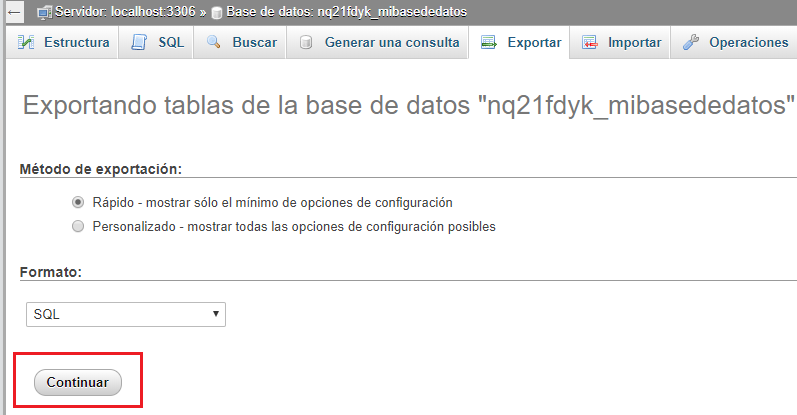
- Leave the quick method selected and click Go.
Your browser will download a .sql file containing the copy of that database.
Common issues
- Access denied or the site does not connect: check the full database name and username, including the prefix, and make sure the user has been added to that database with privileges saved.
- The database does not appear when importing: you must first create it under MySQL Databases. In phpMyAdmin, click that database before clicking Import.
- The file does not import or stops midway: it often exceeds the maximum file size allowed by phpMyAdmin. Compress it as
.sql.zipor split the file. Always import into an empty database. - The export does not start: verify that you selected the entire database in the left column and not just a single table, unless you only want to export that specific table.
If you are unable to create the database, the user is not properly linked, or the import fails, open a support ticket from the Client Portal or reach out through our website's live chat.