
You can change the cPanel language at any time. The change applies to your user and is maintained in future logins.
What is it for?
- View the panel in Spanish, English, Portuguese, or another available language.
- Follow a guide or documentation that shows the option names in another language.
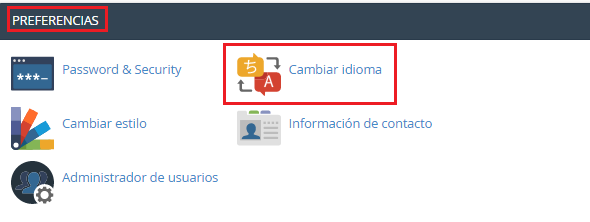
Access: log in to cPanel from the client portal → Log in to cPanel, or at https://yourdomain.com/cpanel. Then open Preferences → Change Language.
Change the language
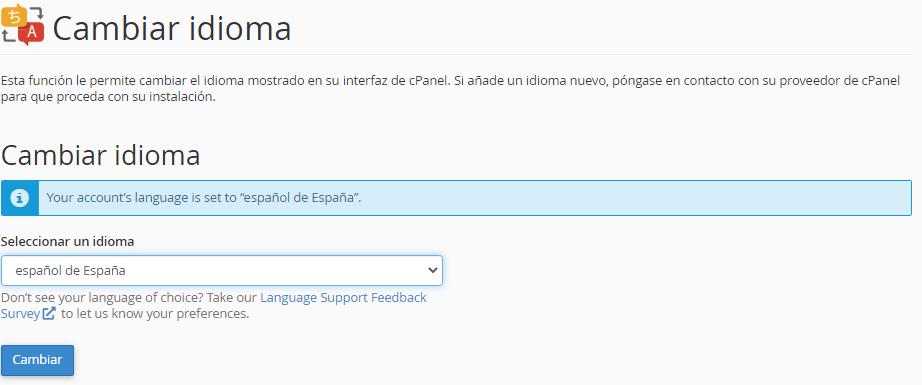
- In the dropdown, choose the language.
- Click Change. The panel reloads in the chosen language.
You can also choose the language before logging in, using the languages that appear below the form at https://yourdomain.com/cpanel.
Common issues
- Some sections remain in another language: tools like Softaculous have their own language setting inside the tool. Some cPanel texts also lack a complete translation.
- Webmail did not change language: webmail has its own setting. Change it in Settings → Preferences → User Interface.
- I chose a language I don't understand: go back to
https://yourdomain.com/cpaneland choose the language below the login form. The Change Language option can also be found with the panel search bar by typinglanguage.
If you cannot change the language, open a ticket from the client portal or consult via the online chat of the site.